How Things Work in 3bit Serhiivka Wasteland
New to 3bit Serhiivka Wasteland? Pick a faction and deploy with the free basic kit. Press M to find loot, services, capture points and active missions. While alive, press F4 to open the Player Tablet.
Game Mode
Wasteland is a survival sandbox in Arma Reforger. You can fight for territory, scavenge and trade, take on missions or hunt for other players’ loot. You’ll encounter both rival players and AI. Territory gives you places to deploy and a steady source of income.
When the Central Bank is enabled, payouts draw down a shared reserve. Personal deposits add to your faction’s Money Banked score and ATM withdrawals reduce it. When the reserve runs out, the faction with the most Money Banked wins. Press F3 to check the scoreboard.
Economy
Cash is the money you carry, including money items such as SSDs. Other players can loot it if you die, and carried money can drop when you disconnect. Bank is your personal saved balance. You spend it at the Black Market and when deploying with a priced saved loadout.
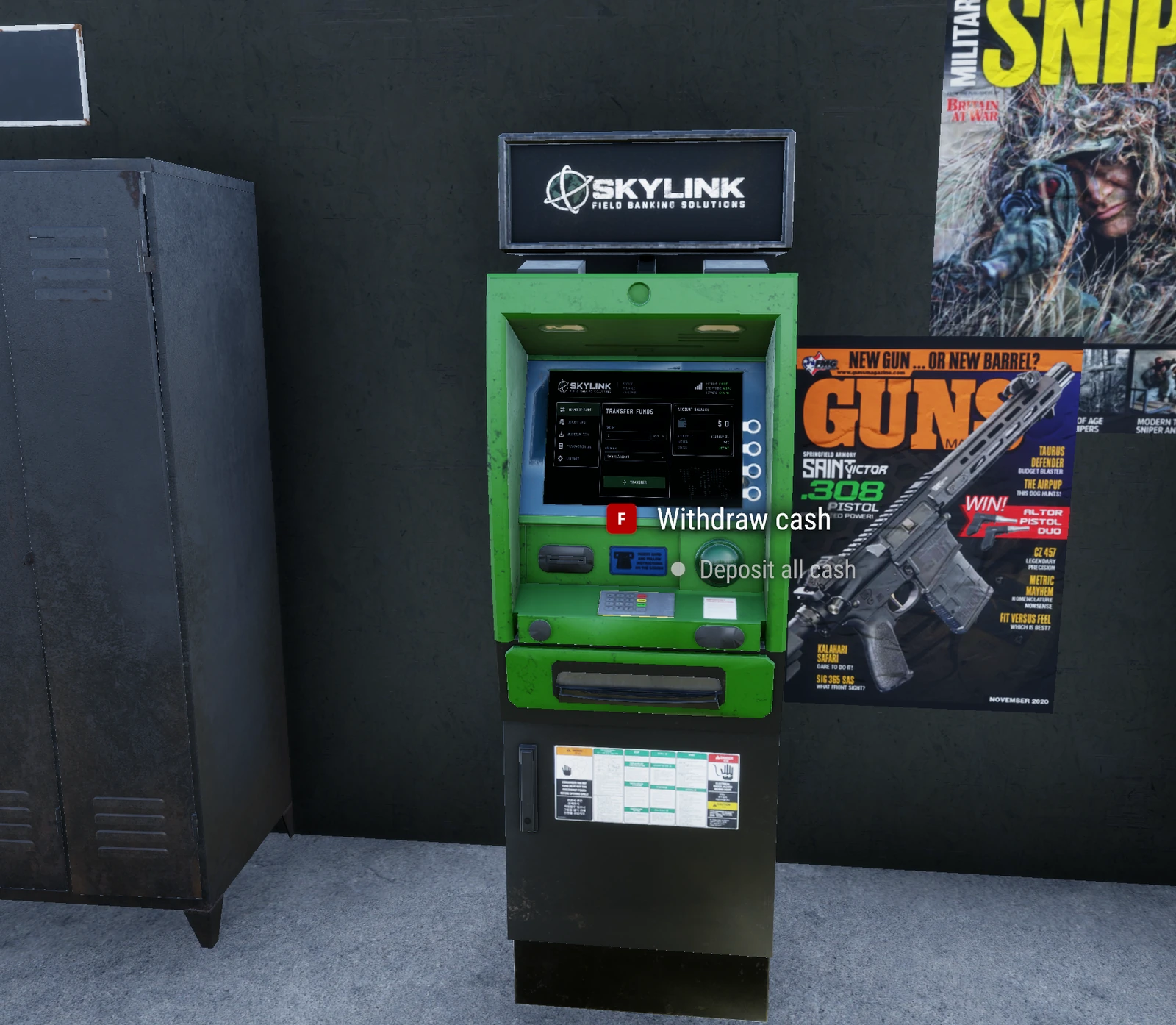
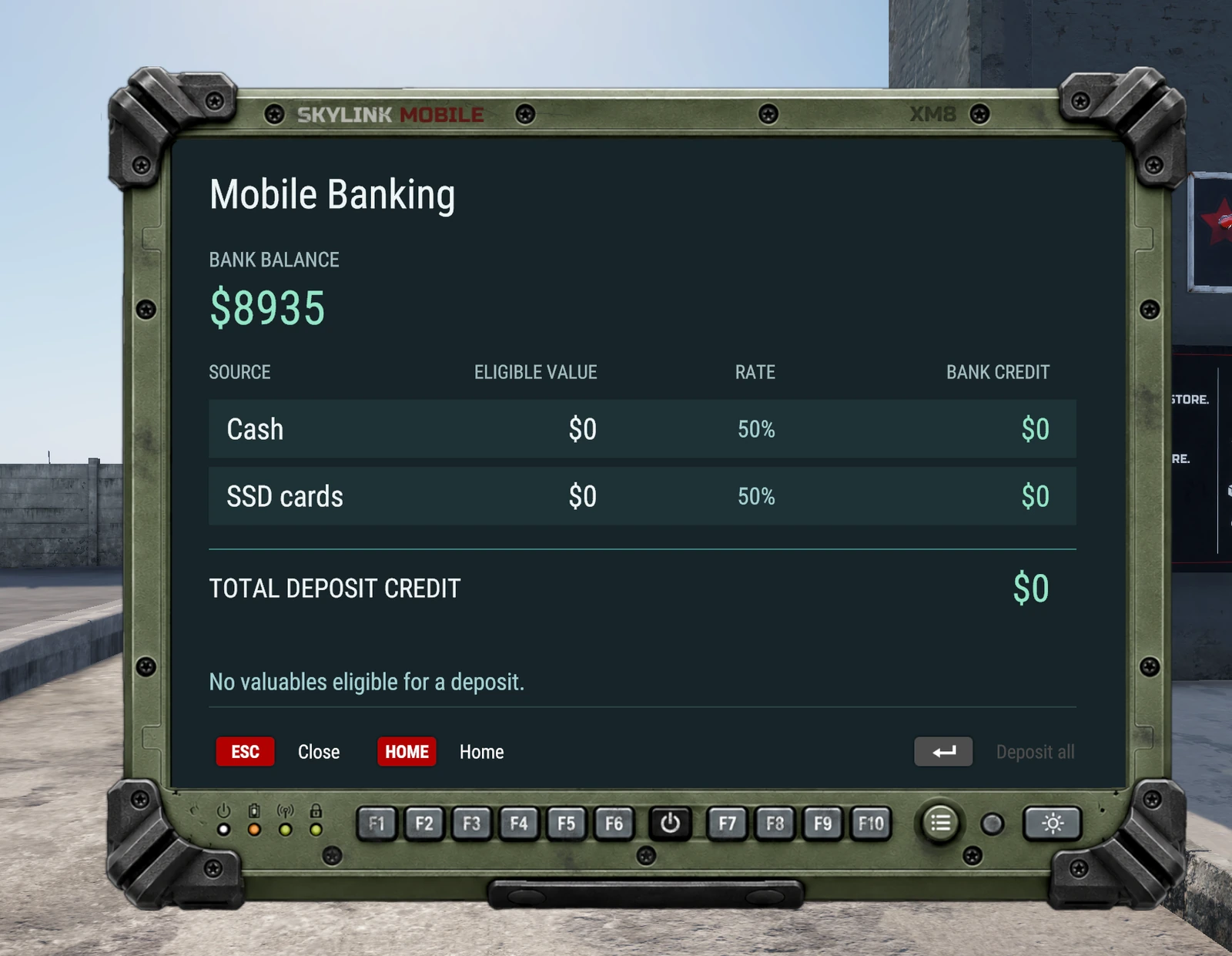
Use a fixed ATM to deposit carried money at full value or withdraw money from your Bank. Mobile Banking on the Tablet is deposit-only and credits 50% of eligible Cash and SSD value. A Field Laptop also supports deposits in the field. Check its quoted credit before confirming.
Wages
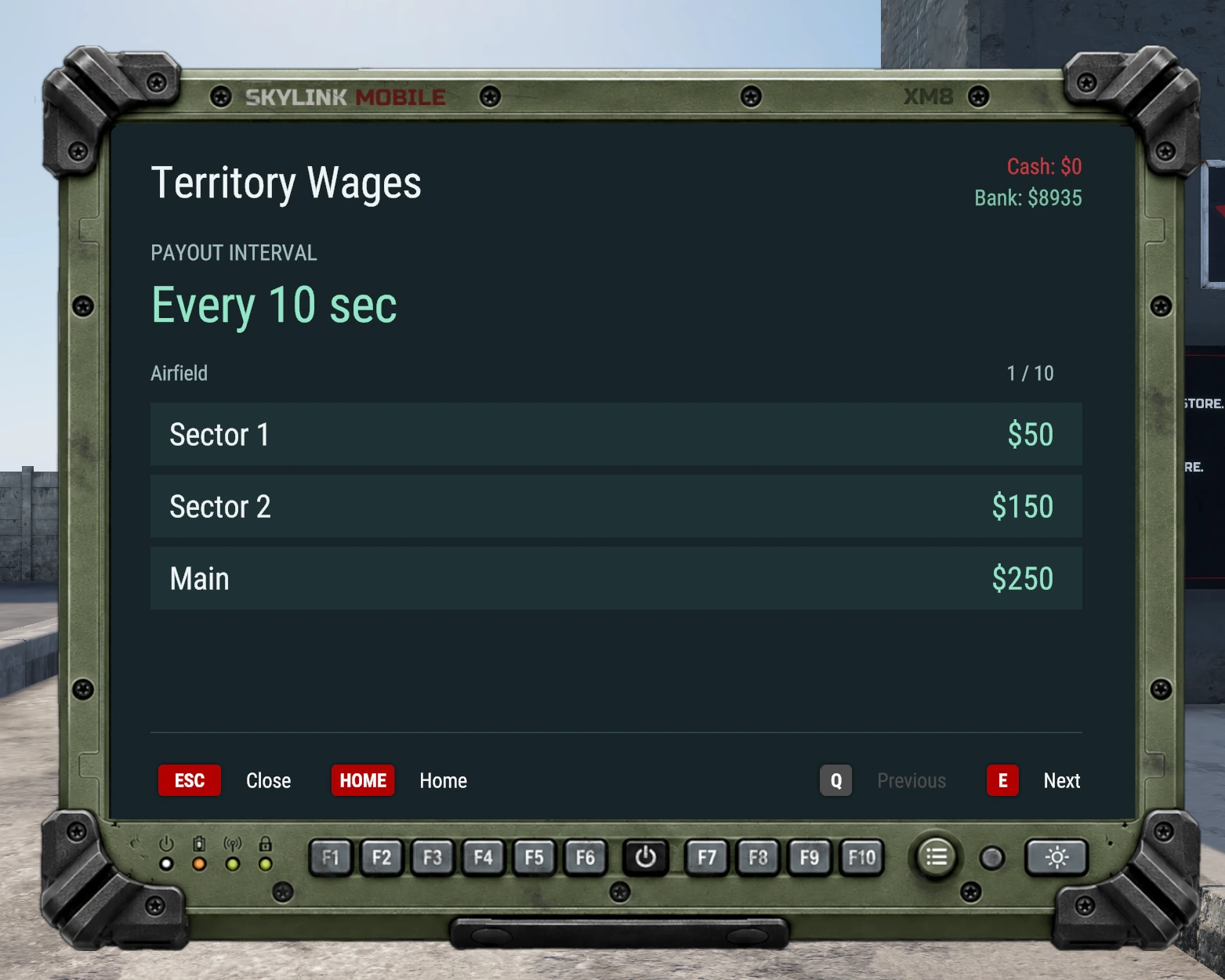
Each paying sector your side owns adds to the next scheduled payout. Wages arrive as carried money even when you’re elsewhere on the map. Capturing a sector adds its value to the next payout your side qualifies for. Open Tablet → Territory Wages for the payout interval and sector values.
US and USSR players share their own faction’s territory income. FIA wages go to the solo player or squad that holds the claim. Eligible actions such as captures, defences and enemy kills can also earn money when those rewards are enabled.
Loot
Open loot containers directly and check mission crates and airdrops for supplies and valuables. Standard loot spawners roll their contents on the first eligible opening. A crate can already be empty or picked over, and reopening the same container won’t reroll it.
Take what you can use, store eligible gear in your stash, and bring valuables with a listed sell price to a Black Market.
Black Market
Look for Black Market markers on the map. Use the trader to buy premium weapons, attachments, ammunition and equipment with your Bank balance. Bring eligible items in your inventory to sell them for Bank credit. Use the displayed buy and sell prices to check what each trade will cost or pay.
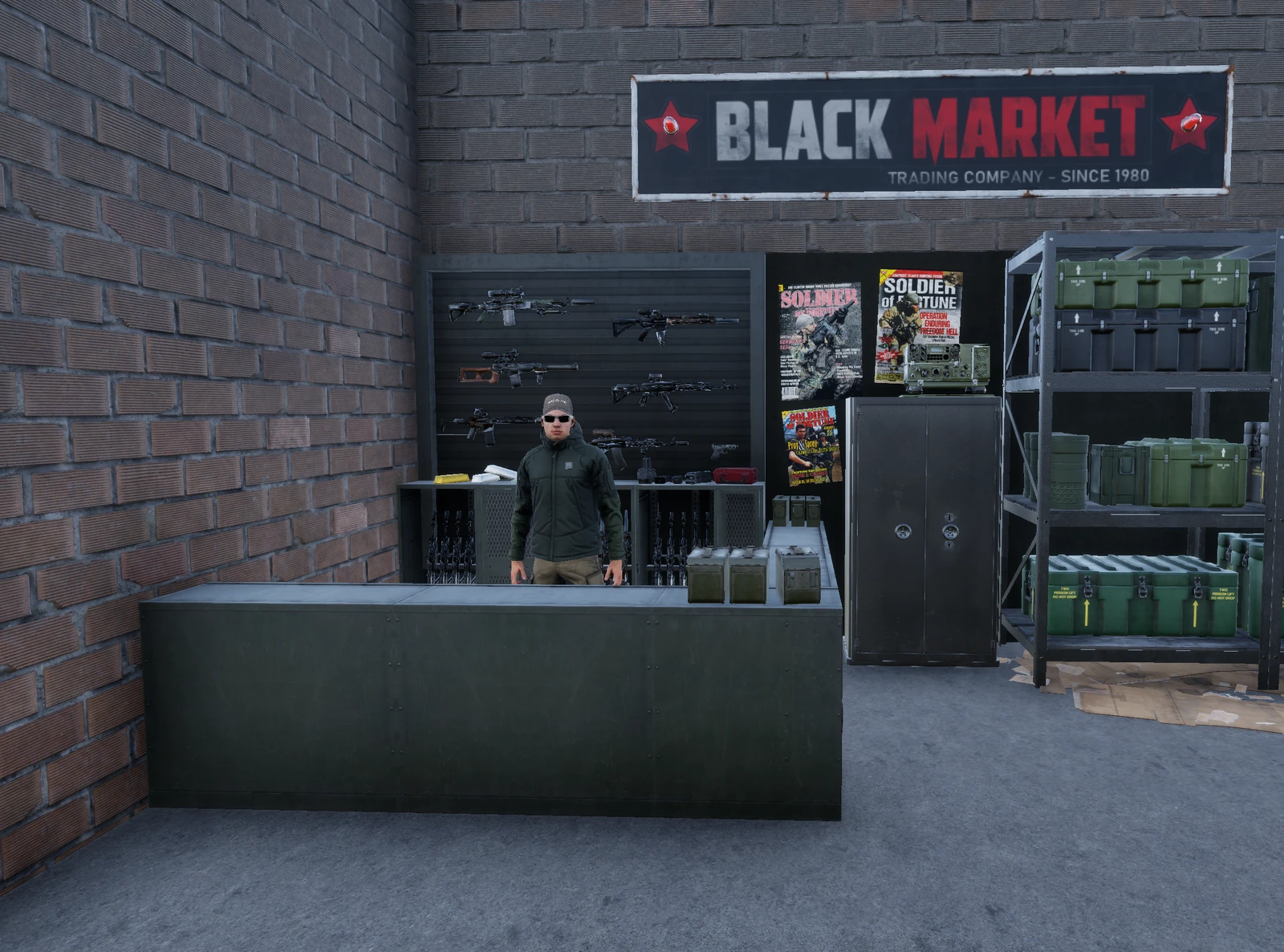
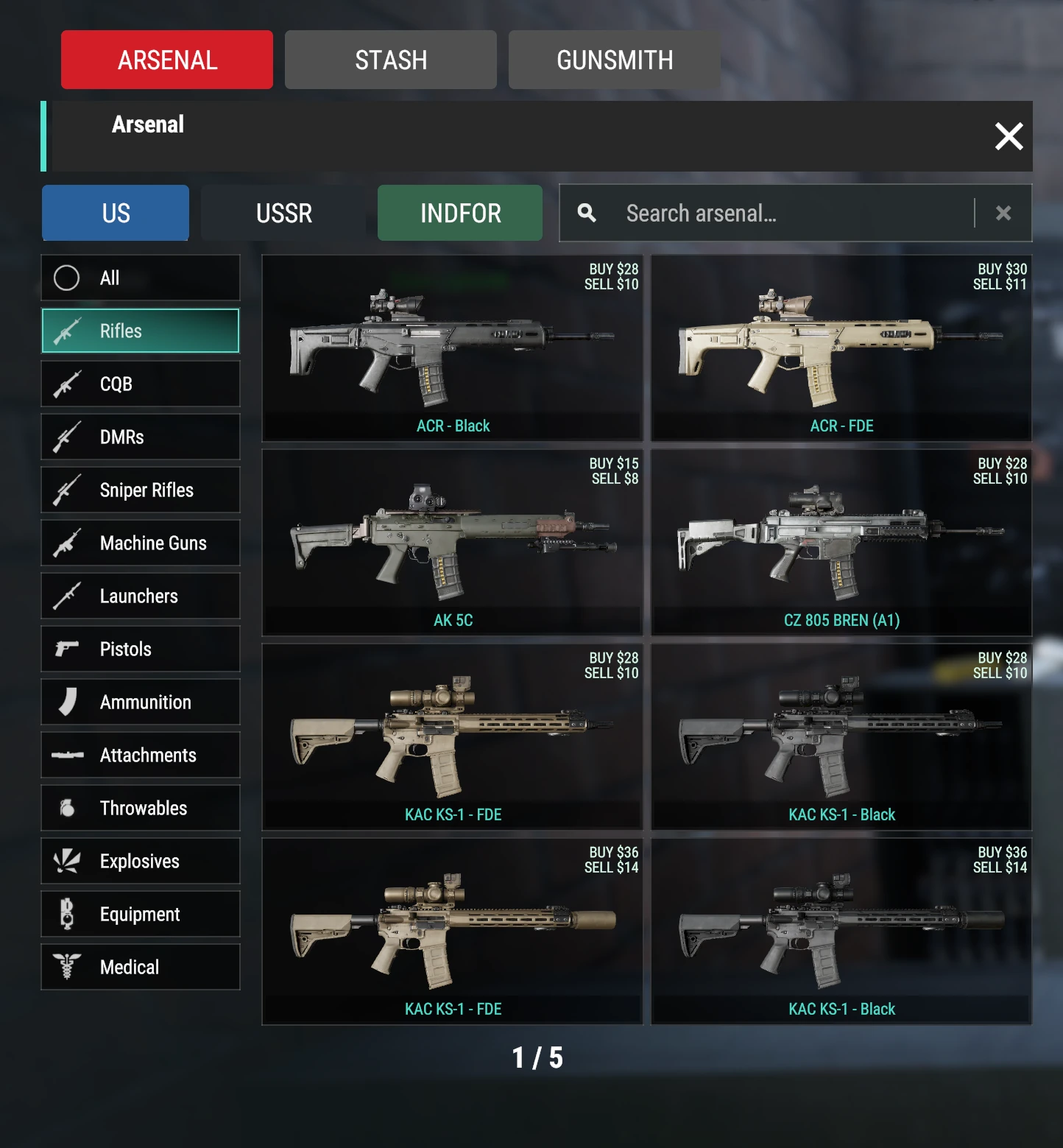
Save a loadout for free at supported arsenals. Check the quoted price before loading it or selecting it at deployment. If you’re short on funds, you can deploy with the free basic kit.
Territory Control and Capture Order
Open the map and hover over a sector to see the local capture order. At a three-stage territory such as Airfield, the usual route is Sector 1 → Sector 2 → Main. To take a later stage, your faction must currently hold the previous stage in that territory. Follow the map labels where the stages have different names.
Enter the marked capture area and hold it until the capture completes. Enemy presence can contest the point. Taking and holding a sector can give your side another deployment option, access to local services or more territory wages, depending on the point.
Fast Travel
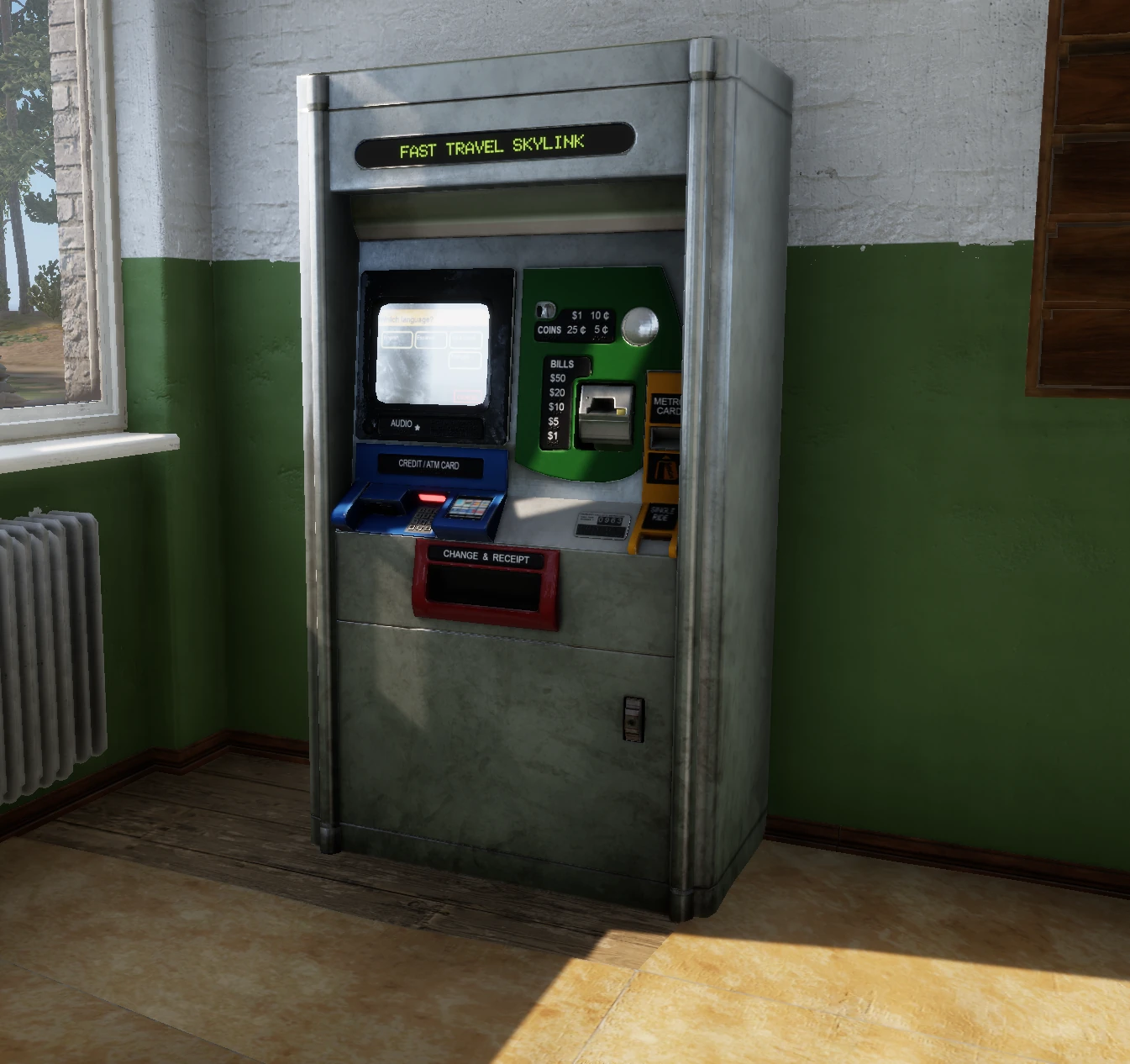
Use a Skylink Fast Travel terminal and choose an available destination. Paid routes charge your Bank balance.
Player Tablet
Press F4 while alive to open or close the Tablet. Esc also closes it. Select Home to return to your apps. The balance header shows carried Cash and your personal Bank balance on supported screens.
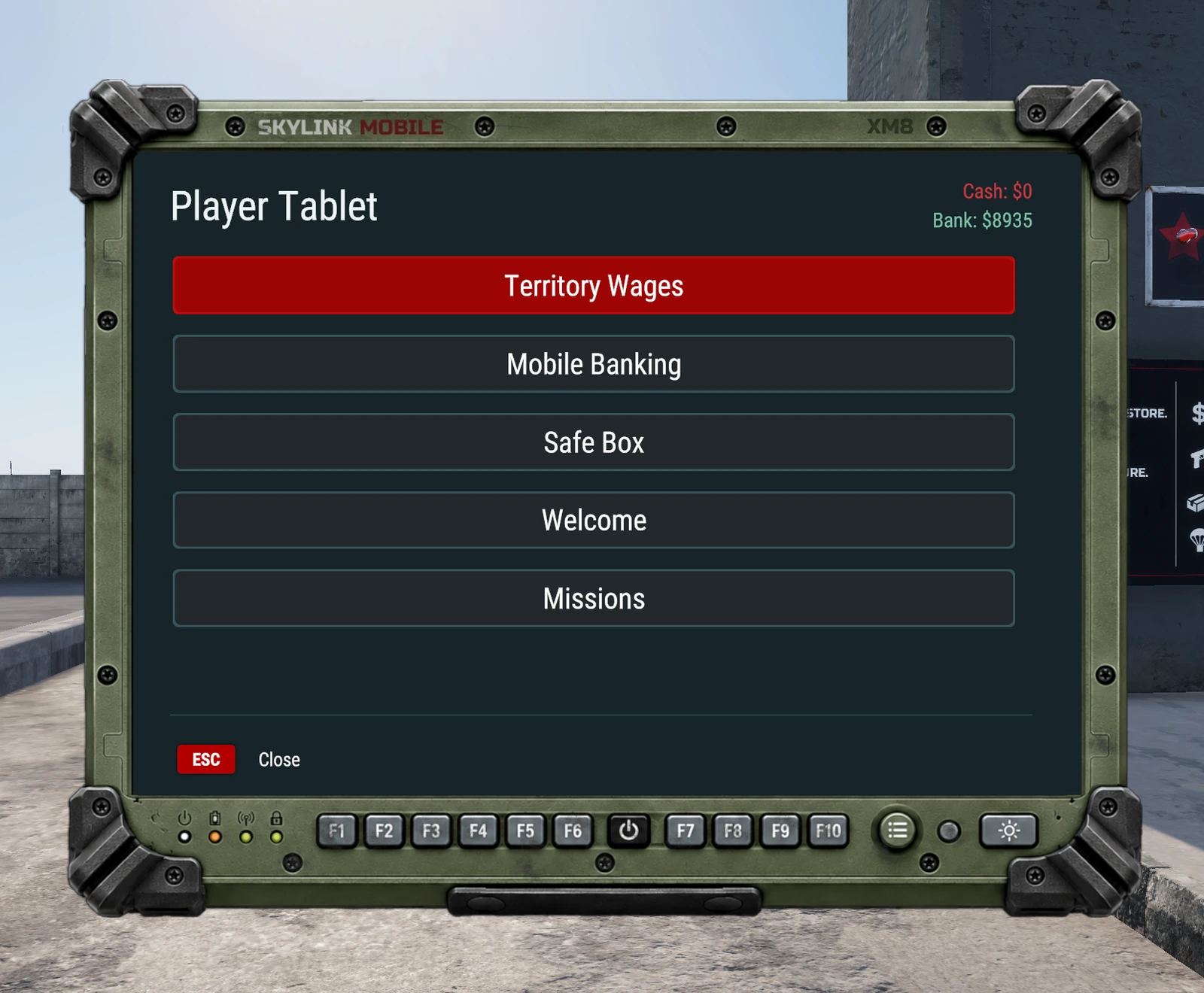
- Welcome has the getting-started notes and community links.
- Territory Wages shows sector payouts and the payment interval.
- Mobile Banking shows what a field deposit will credit to your Bank.
- Safe Box opens your personal stash.
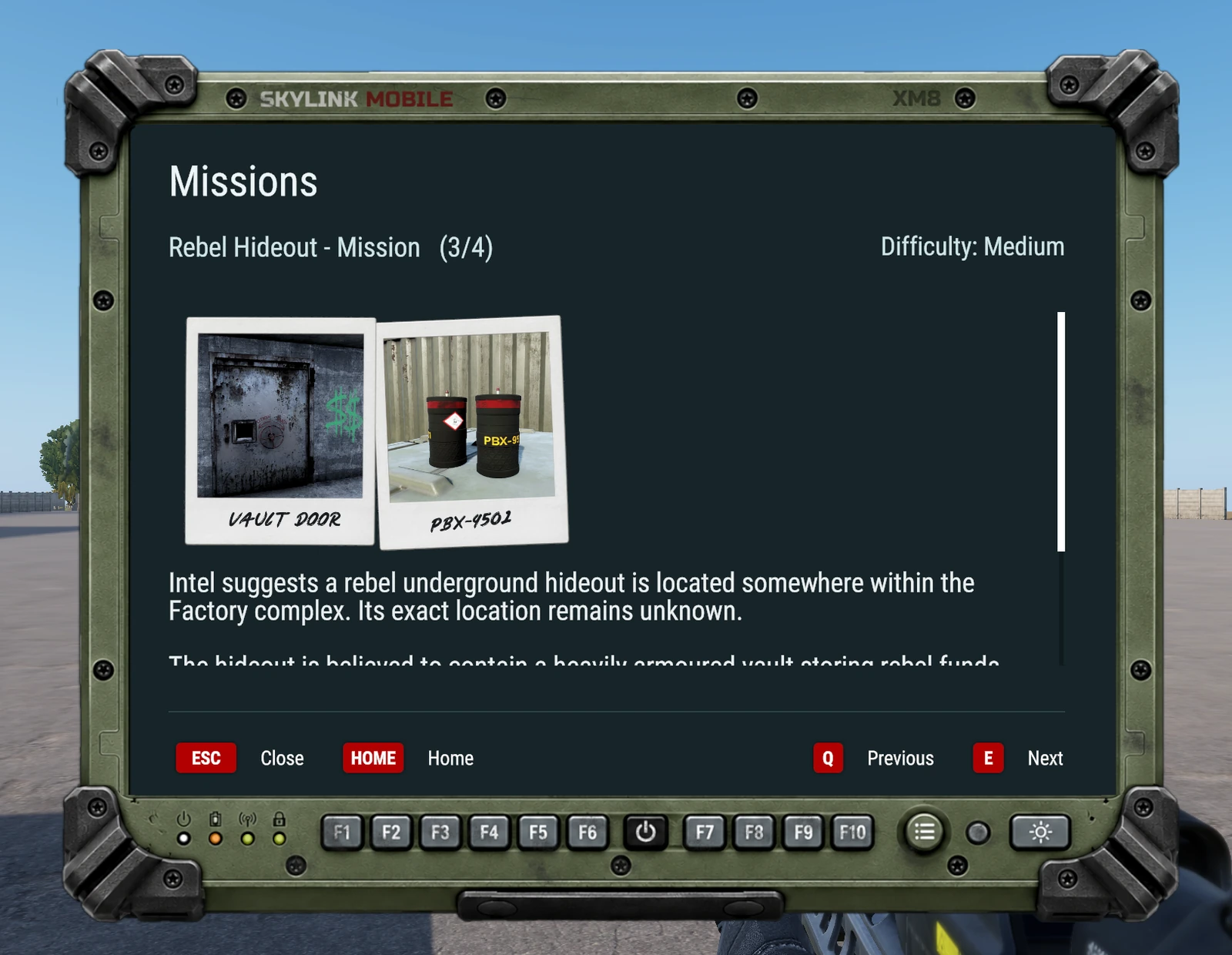
- Missions shows briefings for active missions. Use Previous and Next to switch between them.
Tactical Ping
Press F5 by default to place a Tactical Ping. Only your squad members can see it. Press F5 again to remove it.
Player Stash
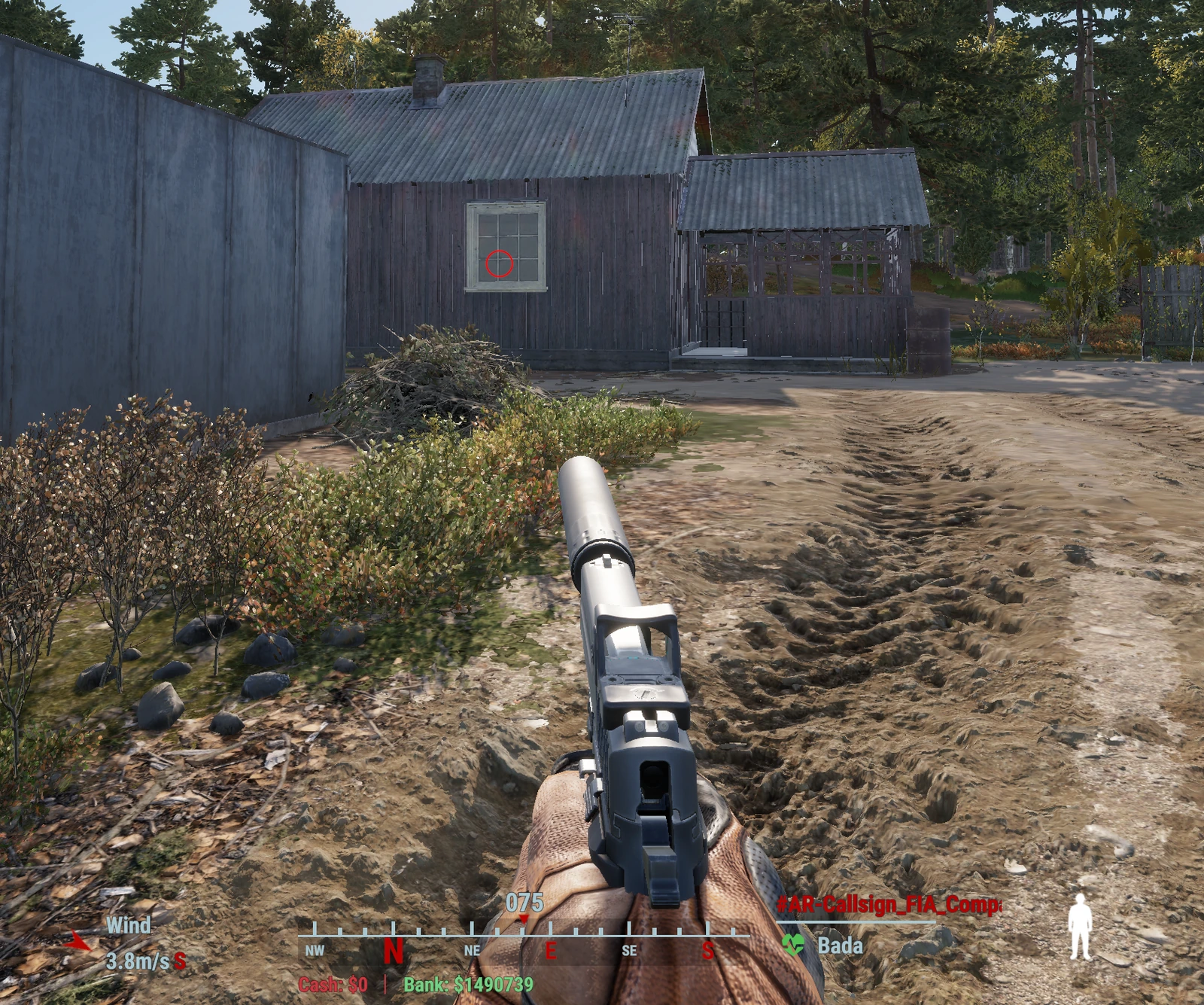
The stash stores eligible items privately on this server. Open Tablet → Safe Box, select a carried item and choose Store item. Select a stored item and choose Take item when you have room in your inventory. You can also use Stash at eligible arsenals.
Stored gear stays in your stash across deaths and restarts. Taking it out puts it back at risk in your inventory. Use Banking for Cash and SSDs.
Factions US and USSR versus FIA
- US and USSR are rival military factions. Each starts from its own HQ. Territory captured by either faction is held for that faction, with shared wages and eligible faction deployment points.
- FIA is playable and starts in the Bad Lands. You can play solo or join a private squad by invitation or approved join request. Treat FIA players outside your squad as rivals. FIA claims belong to a solo player or squad, and deployment at claimed FIA territory is restricted to eligible claimants and squadmates.
Missions
Watch for a mission announcement, check the marked location on the map and open Tablet → Missions for the objective. Briefings tell you whether to look for a reward item, recover supplies or search a crash site. Several missions can run at once, and other players can head to the same location.
At designated request points, use Request Airdrop to call in a supply crate. Follow its parachute to the landing spot and take what you need before it expires. Other players can see and loot the drop.